

Claude Code Agent Teams are fascinating to watch: one lead agent coordinates several independent Claude instances, each working in its own context.
There is just one small problem if you are a Windows user: the split-pane interface is built around tmux.
In this two-part ETX2 Lab, I’ll build the complete setup natively on Windows. In Part 1, we get Claude Code Agent Teams running in separate terminal panes. In Part 2, we will send its telemetry to Azure Application Insights and build a Grafana dashboard on top of it.
No WSL involved.
Starting point
For this lab I started with:
Fresh Windows 11 Home installation
ARM64 / Snapdragon machine
Claude authentication through the interactive browser login
No Anthropic API key
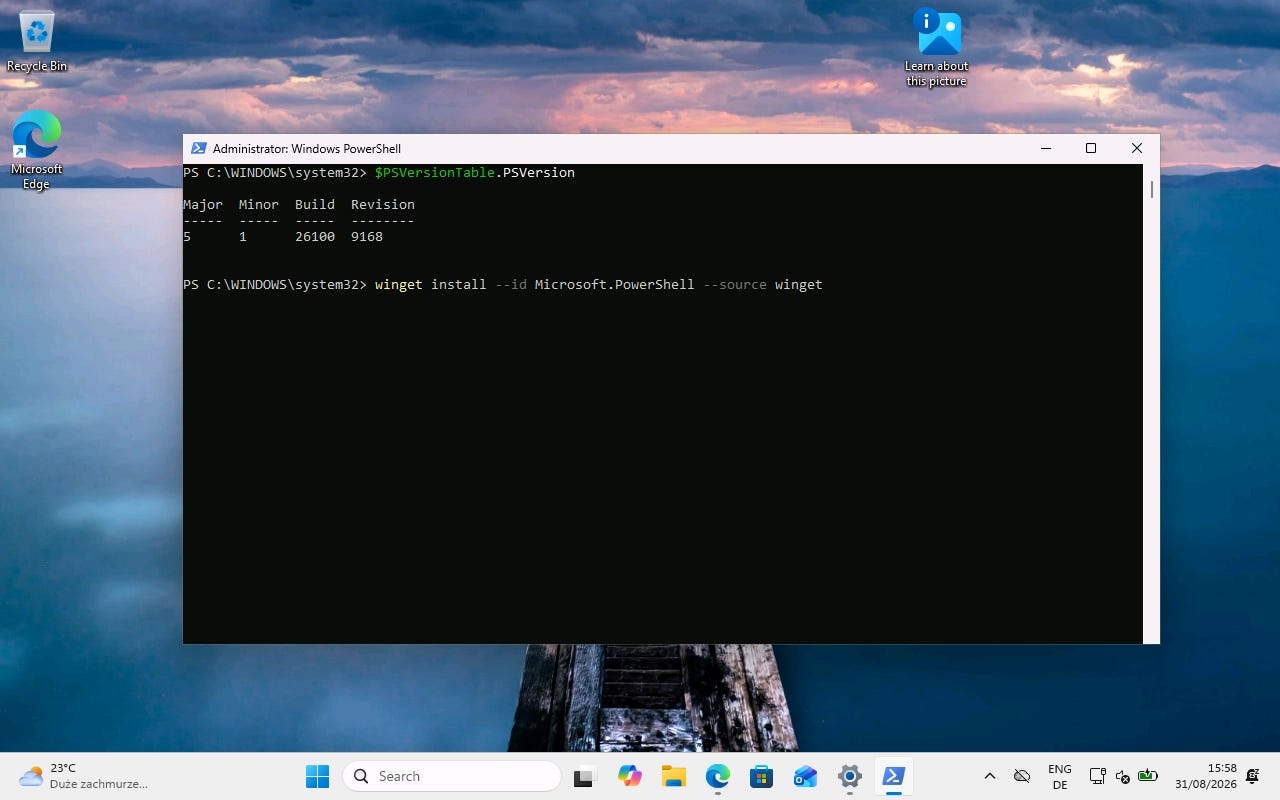
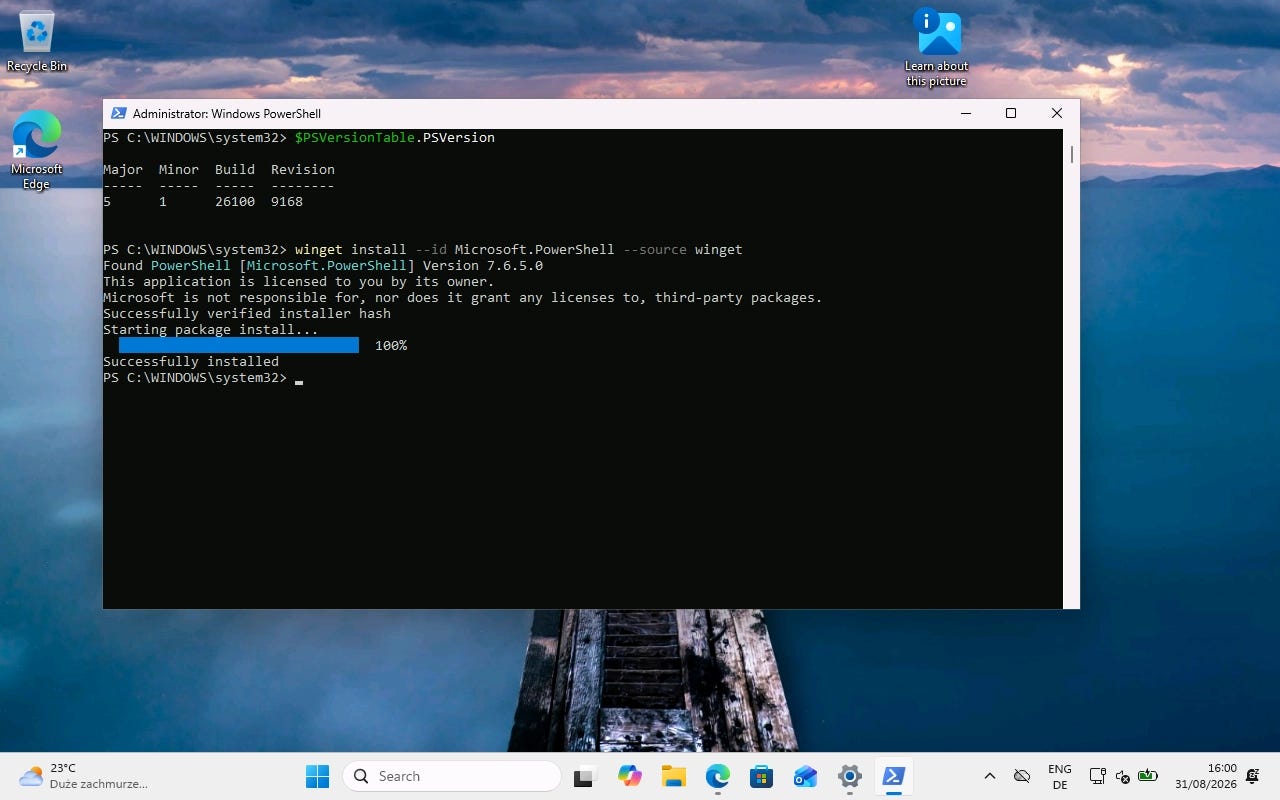
1. Install PowerShell 7
Open a terminal and install the current PowerShell:
winget install --id Microsoft.PowerShell --source winget
Then start PowerShell 7 as Administrator.
2. Install Claude Code
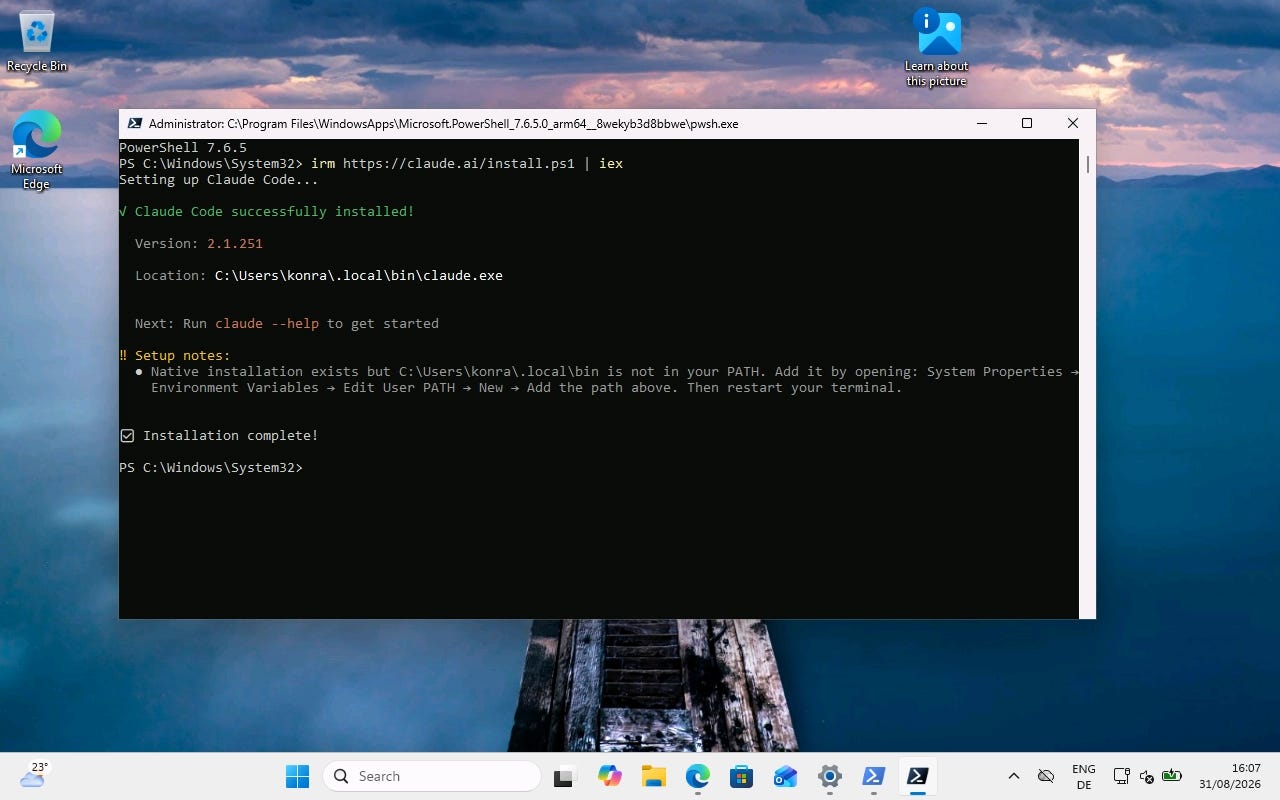
Anthropic provides a native Windows installer:
irm https://claude.ai/install.ps1 | iex
3. Check the PATH
Start a new PowerShell, then try:
claude --version
If Windows cannot find Claude, add its installation directory to your user PATH:
$currentPath = [Environment]::GetEnvironmentVariable('PATH', 'User')
[Environment]::SetEnvironmentVariable(
    'PATH',
    "$currentPath;$env:USERPROFILE\.local\bin",
    'User'
)
Restart PowerShell afterwards. Verify with
claude --version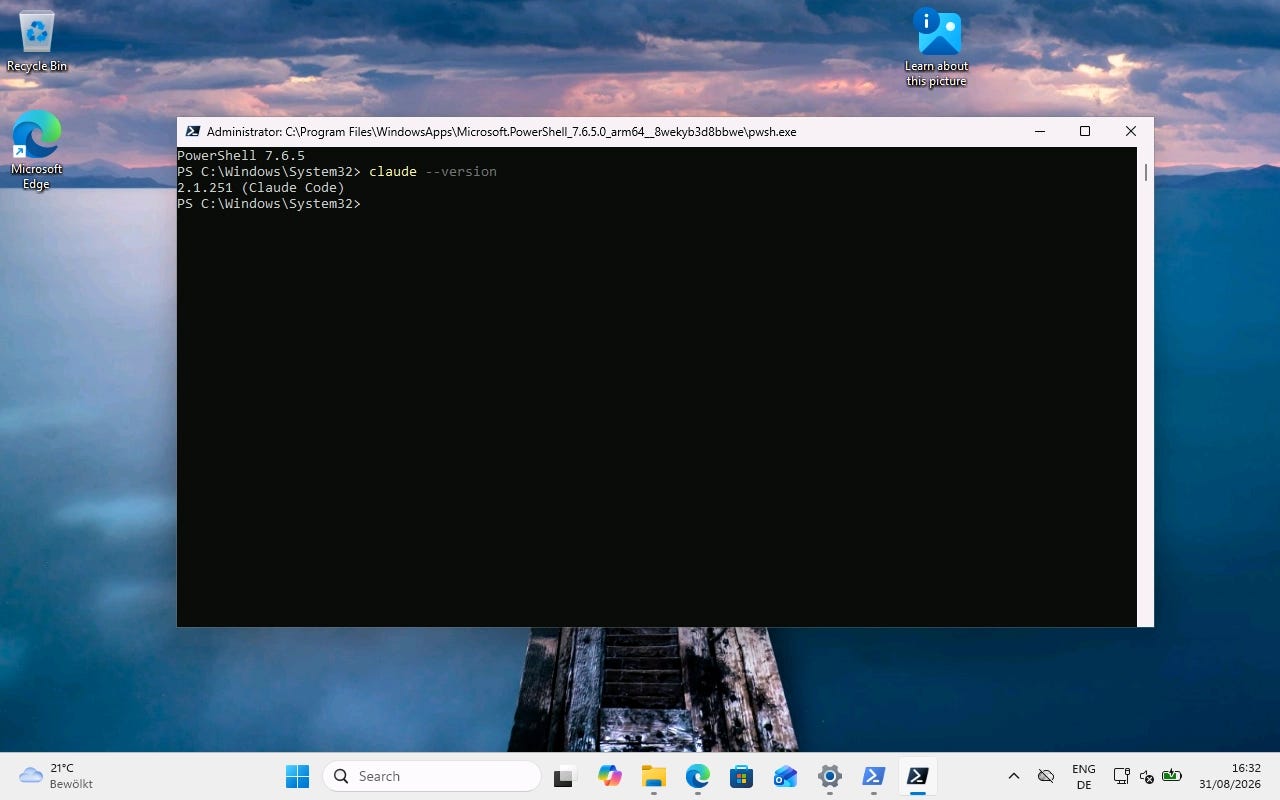
4. Install psmux
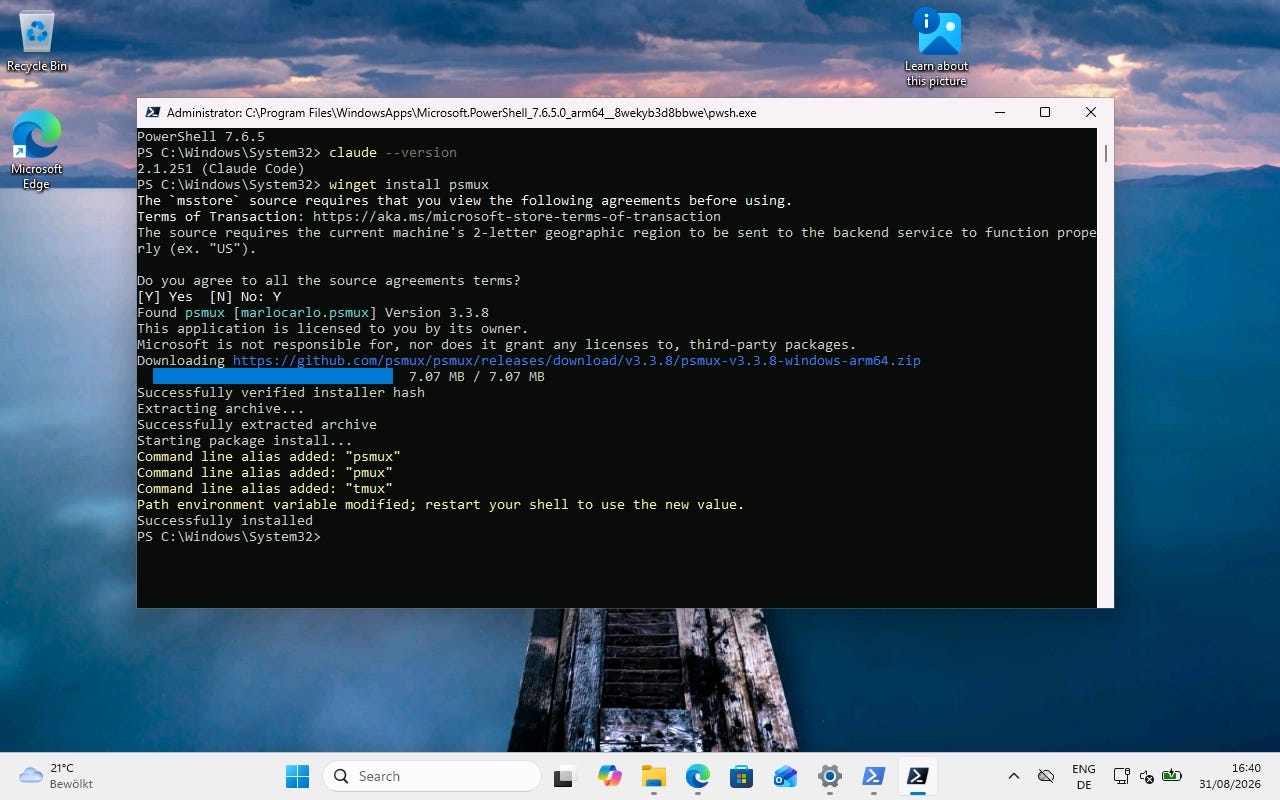
Claude’s split-pane Agent Teams UI expects tmux. On Windows, I use psmux, a native tmux-compatible terminal multiplexer. You will need to accept terms with Y during installation.
winget install psmux
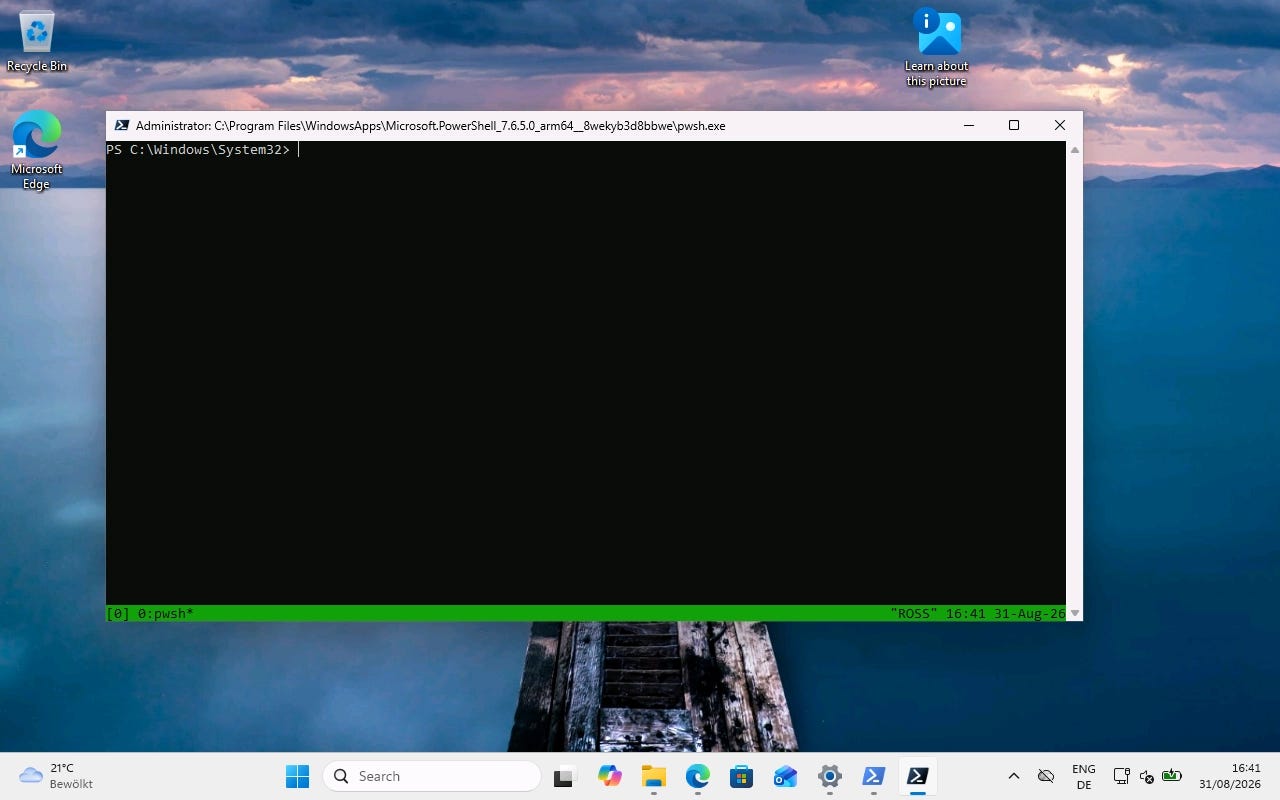
Start it:
tmux
No Linux environment or WSL is required.
5. Create a project
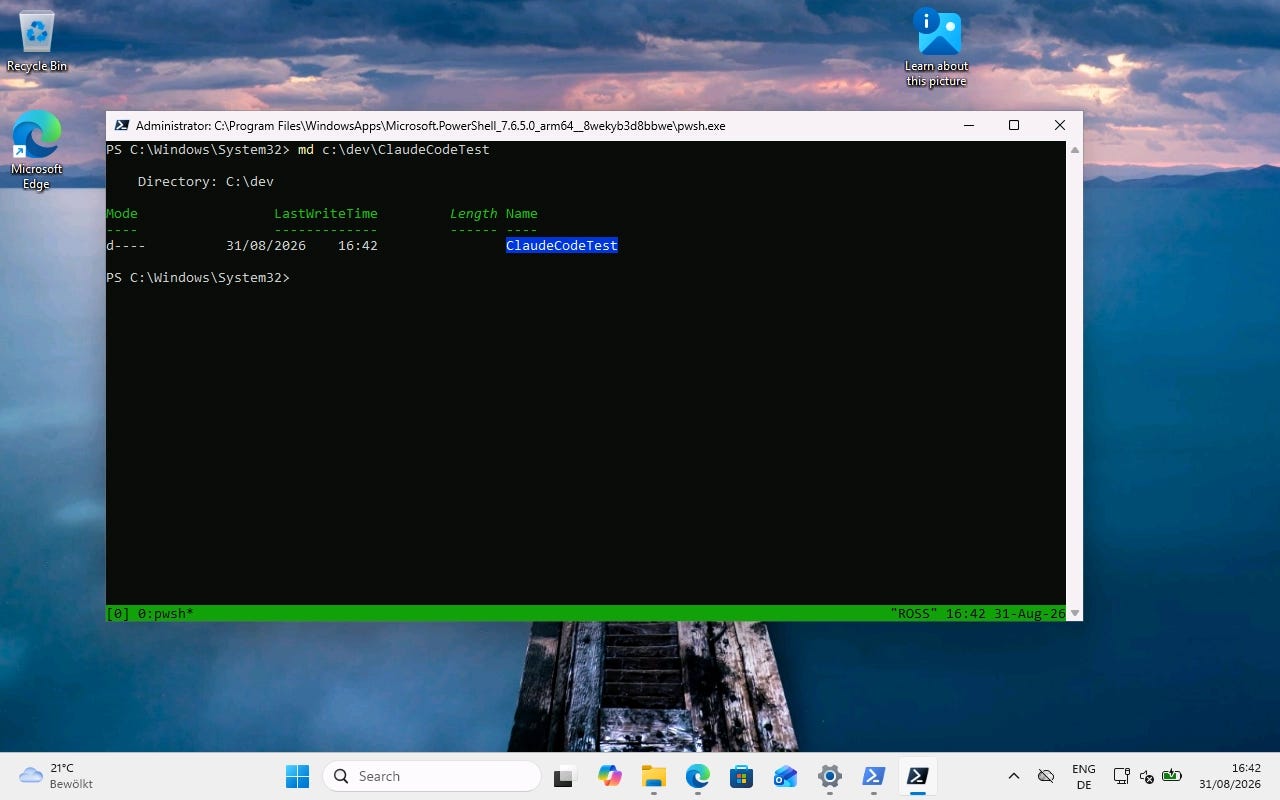
For this test I use an empty directory:
md C:\dev\ClaudeCodeTest
cd C:\dev\ClaudeCodeTest
6. Install VS Code
winget install -e --id Microsoft.VisualStudioCode
7. Start Claude Code
From the project directory:
claude
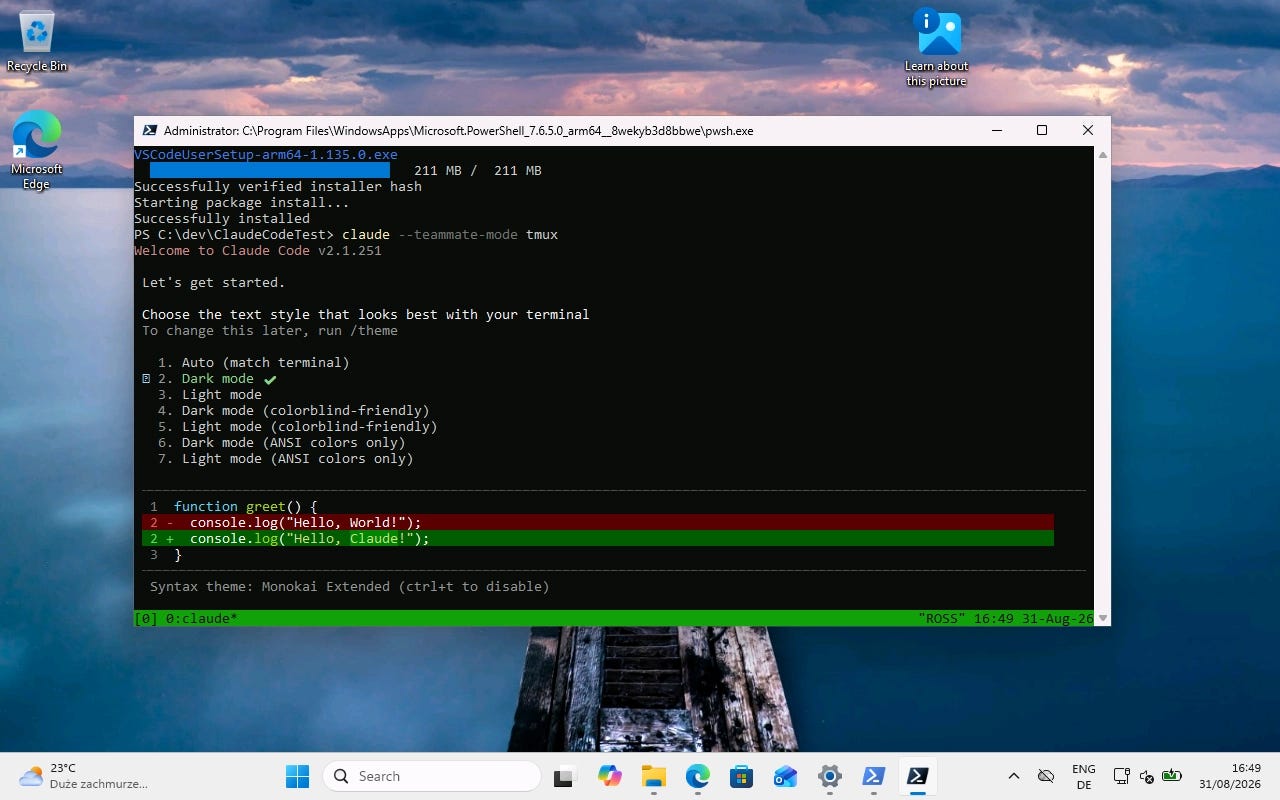
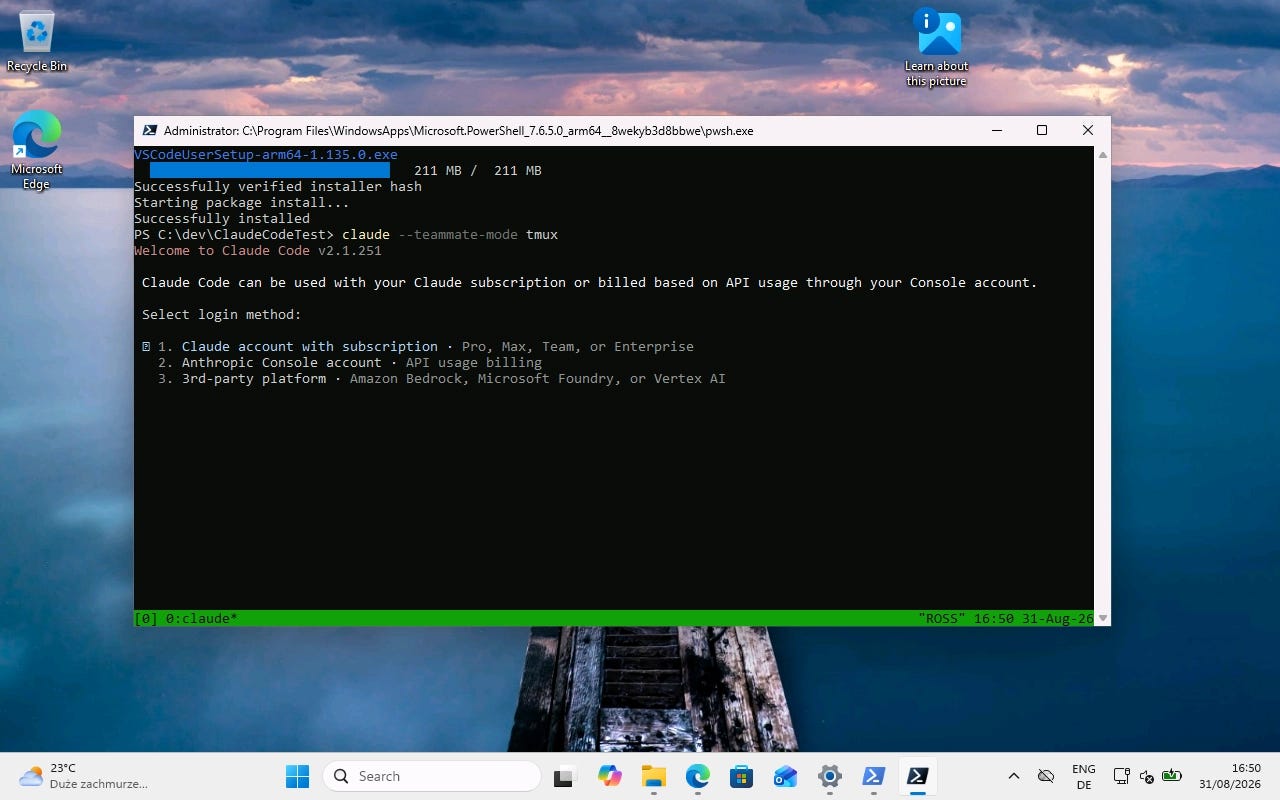
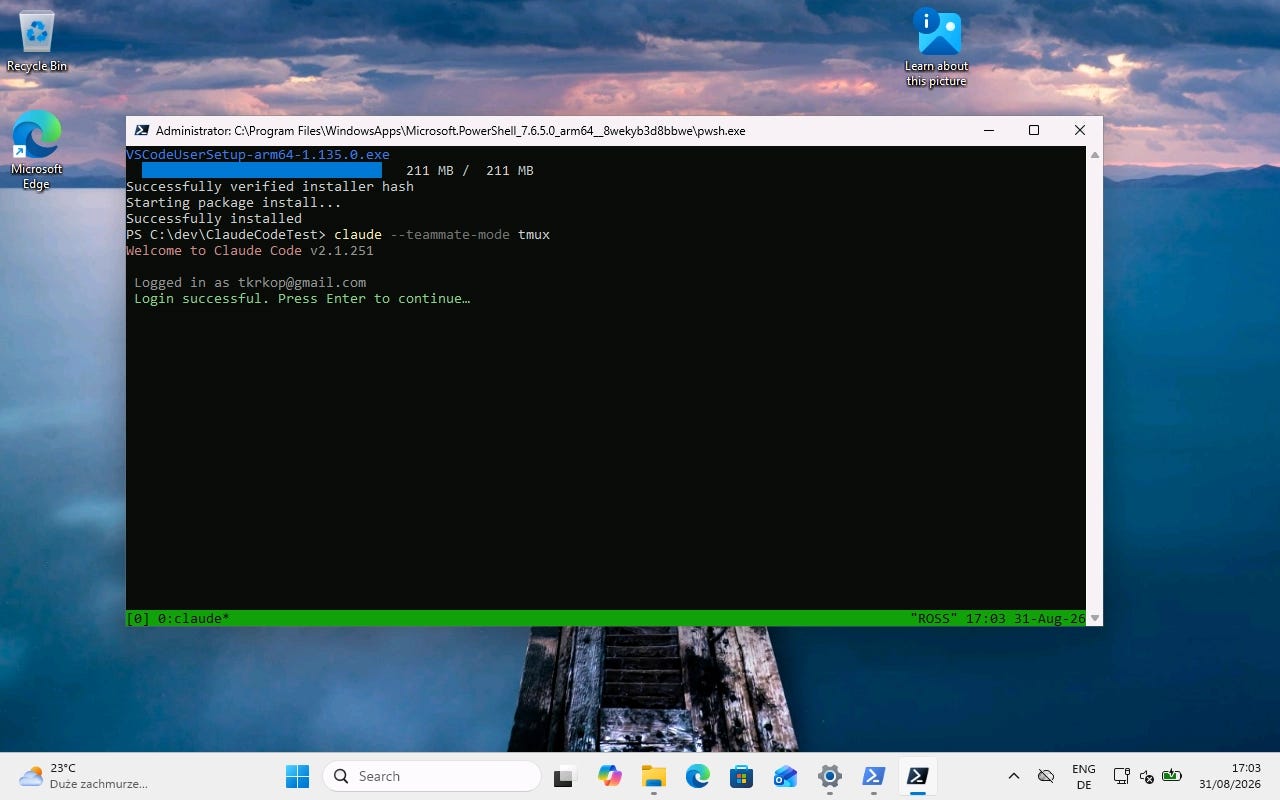
On the first run, Claude guides you through authentication. I use my Claude account and authenticate interactively in the browser rather than supplying an API key.
Claude asks a few questions and then heads over to the authentication in the browser.
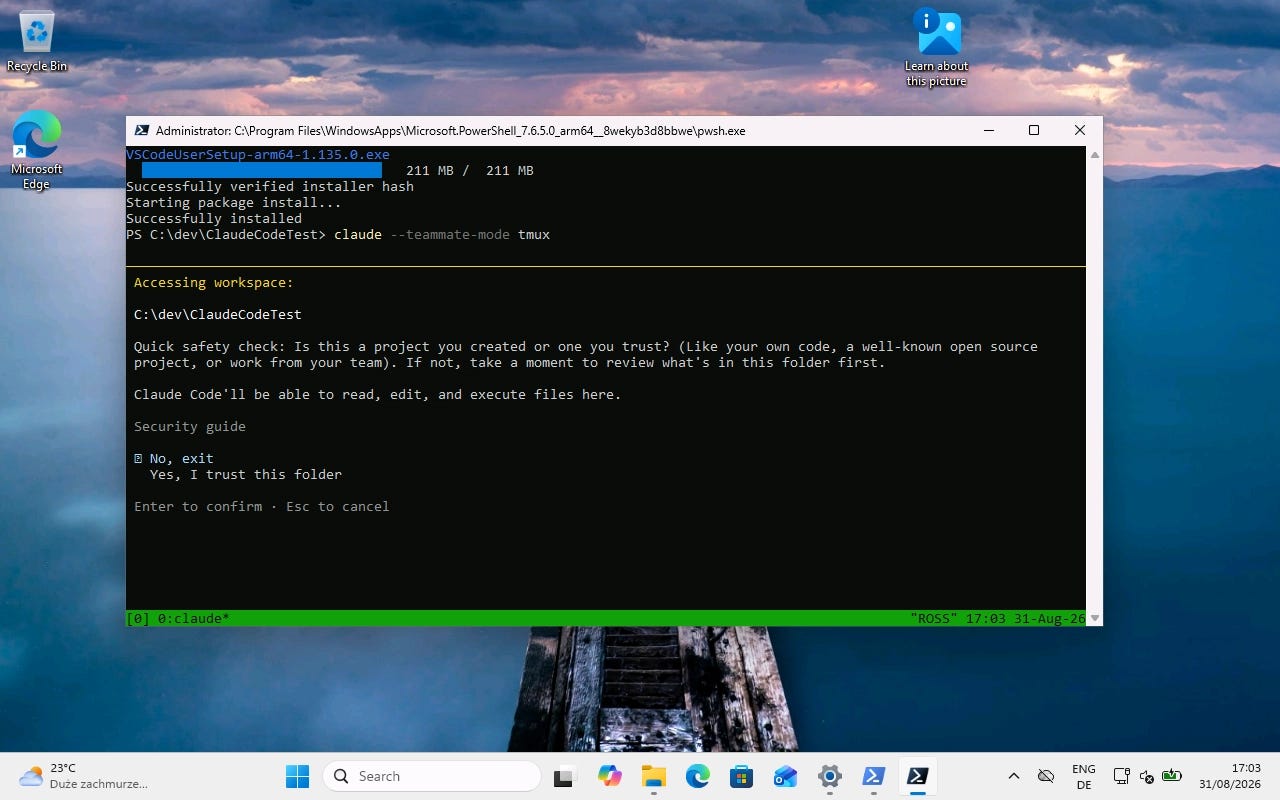
Make sure you trust the folder you are in:
Exit Claude again after the initial setup with /exit in the prompt:
/exit8. Enable Agent Teams
Agent Teams are currently an experimental Claude Code feature and disabled by default.
Enable them for the current PowerShell session:
$env:CLAUDE_CODE_EXPERIMENTAL_AGENT_TEAMS=1

9. Start Claude in split-pane mode
Now launch Claude Code with the tmux teammate interface. Claude might ask whether to try the fullscreen renderer.
claude --teammate-mode tmux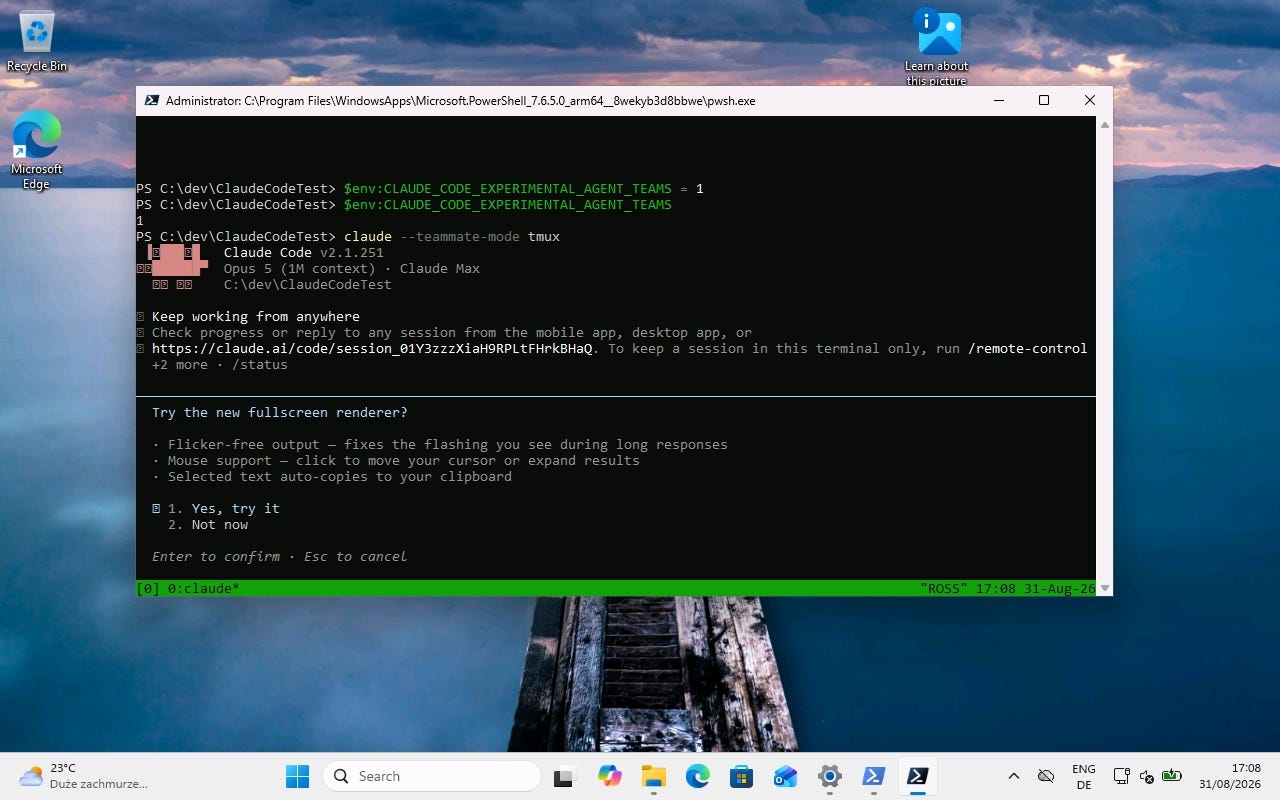
10. Give the team some work
The final step is the fun one.
Ask Claude to create an agent team and give the teammates work that can be performed in parallel—for example architecture, implementation and testing. A dramatically reduced version could read like this:
I’m designing a new web application. Spawn three agents: the first one acts as a project manager and refines the requirements. The second one as developer and the third one as tester.
Claude will probably ask a set of questions about the details. Once Claude creates the team, psmux opens the individual Claude sessions in separate panes.
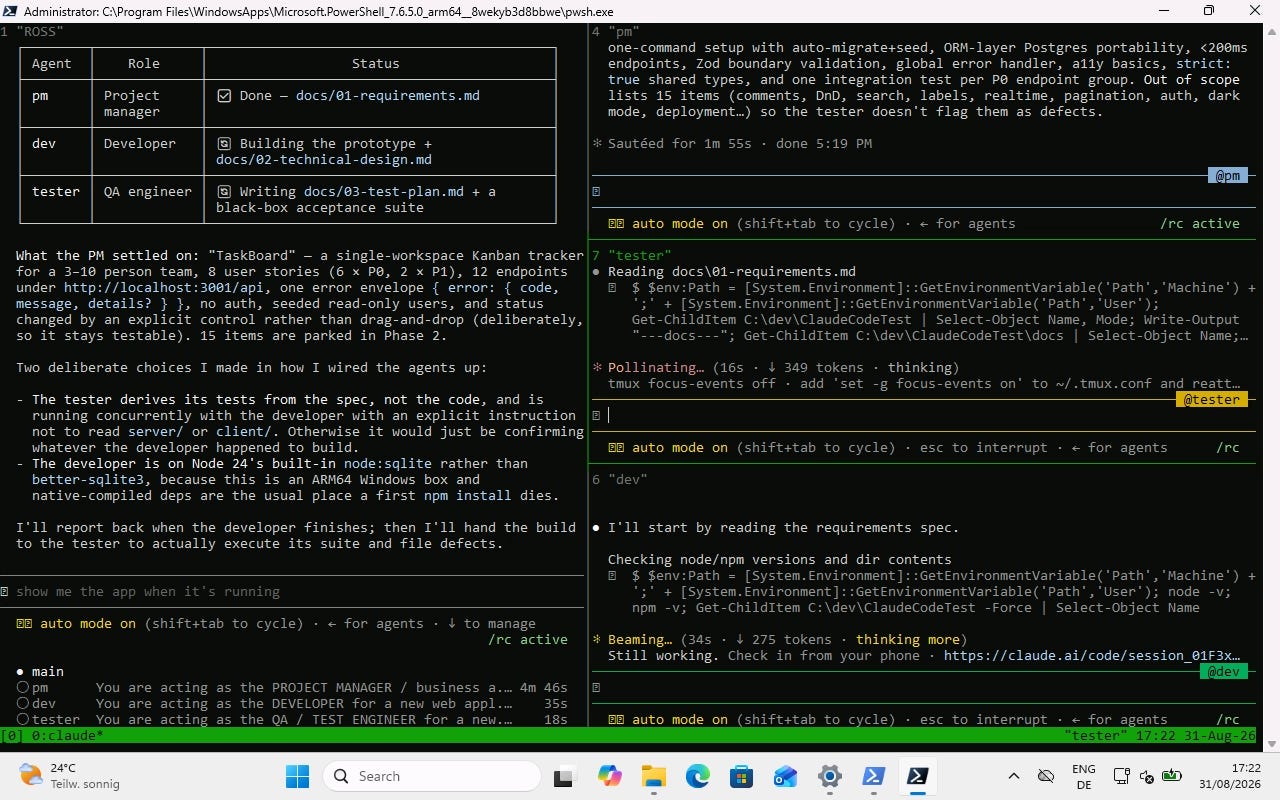
And that’s it: Claude Code Agent Teams running natively on Windows in a multi-pane CLI.
Next: Where are all those tokens going?
Multiple agents also mean multiple context windows, prompts, tool calls and potentially substantial token consumption.
So simply getting Agent Teams to work is only half the experiment.
In Part 2, I’ll connect Claude Code’s OpenTelemetry output to Azure Application Insights and use Grafana to visualize what the agent team is actually doing—and what it costs.